
Manage Your Multi-Currency Wallets
Each Project has wallets to store funds. The available currencies are Euro, Bitcoin, Ethereum, Tron, and Tether USD. For each wallet, you can perform the following operations:
- Receive Crypto and Fiat: Add cryptocurrency and fiat to your wallet. For fiat currency deposits, always specify the reference number in the payment description.
- Send Crypto and Fiat: Withdraw funds from your wallet, whether they are in cryptocurrency or fiat.
- Swap: Instantly exchange currencies.
ImportantFunds can be withdrawn in Euros to your company's account. Withdrawal is possible only on approved bank accounts added in the account.
Accept Payments via Invoices
Invoices are a convenient payment form with automatic exchange rate locking. The client receives a payment link, enters the details, and pays in any available currency. The funds are automatically converted into the currency chosen by the business, for example, USDT, and credited to an account. This ensures that you always receive the expected amount in the selected currency.
To create an invoice, go to the Project tab, select your project, open the Invoices section, and click Create New Invoice.
When creating an invoice, the following parameters are available:
- Name – the name of the invoice.
- Amount – the amount to be received.
- Currency – the currency in which the funds will be credited.
- Success URL – the link for redirection after successful payment.
- Failure URL – the link for redirection in case of unsuccessful payment.
- Description – the description displayed during payment.
- External ID – the unique identifier of the invoice.
- Expires In Minutes – the validity period of the invoice.
- Fee Paid By Sender – if enabled, the payment fee is charged to the payer; if disabled, the fee is charged to the invoice creator.
Invoice Benefits
- The client can pay in any available currency, and the system will automatically convert it into the currency specified in the invoice.
- The exchange rate is fixed for 2 minutes, then updated with a new rate and fixed again for another 2 minutes.
- The business receives the exact and predictable amount in the required currency.
Invoices Settings
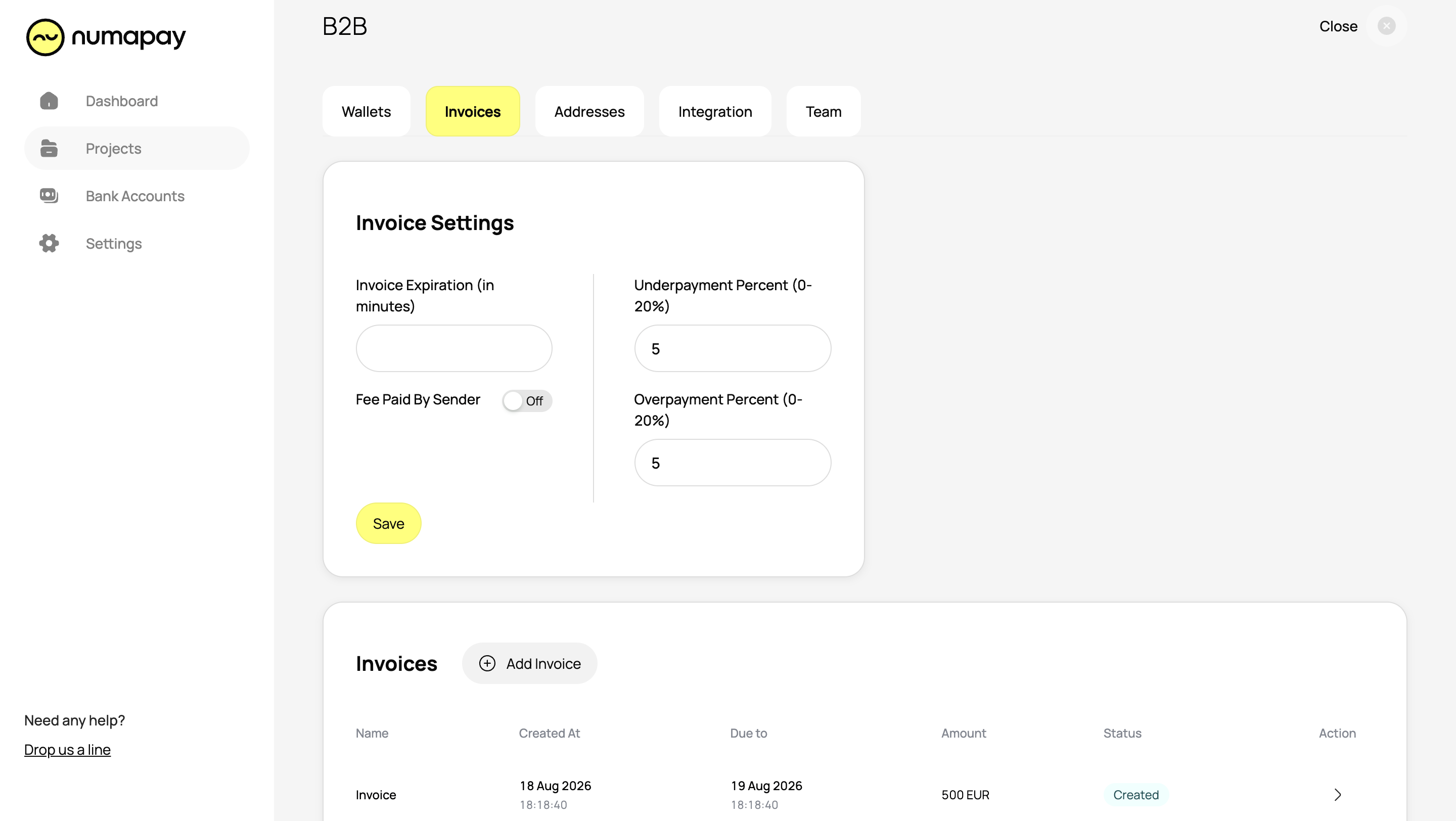
- Underpayment Percent (0–20%) – defines the acceptable underpayment threshold. For example, if set to 5% and the received amount is within 5% less than the expected amount, the invoice will be marked as successfully paid. If the underpayment exceeds this threshold, the invoice will fail.
- Overpayment Percent (0–20%) – defines the acceptable overpayment threshold. Works the same way as underpayment, but for amounts exceeding the expected value.
You can also configure default values for the following parameters:
- Fee Paid By Sender – determines who covers the transaction fee. If enabled, the payer is responsible for the fee. If disabled, the invoice creator covers it.
- Invoice Expiration (in minutes) – sets the default validity period for invoices. Once this time expires, the invoice will no longer be available for payment.
Create Crypto Addresses
You can create crypto addresses to receive funds from external sources. Choose a currency for automatic conversion, and any funds deposited to the wallet will be converted to the selected currency.
Configure Settings
Create API Keys to integrate NumaPay with your systems. To generate an API key, you'll need to confirm using an authentication code sent to your email. Once created, you will receive the API key along with Public and Private Keys. Additionally, you can edit the list of IP addresses that are allowed to use these API keys for enhanced security.
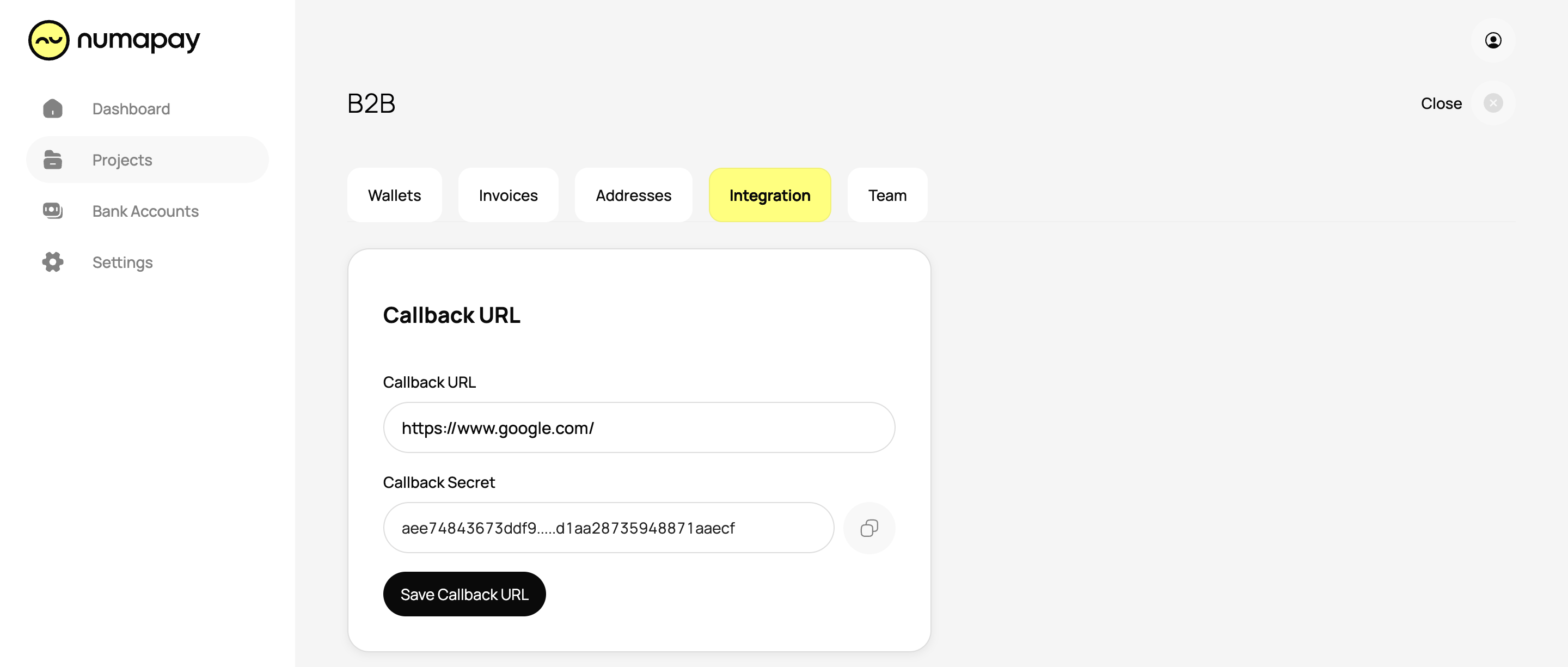
Add a Callback URL to receive real-time updates and notifications from NumaPay. After adding the Callback URL, a Callback Secret will be generated. This Secret is used to authenticate the source of the callback requests, ensuring the security and integrity of the communication.
You can update the name of your Project at any time.
Transfer of funds between Projects
Funds transfer between Projects can be done manually by using wallet addresses. Copy the wallet address of the Project and transfer the funds to this wallet from another Project.
Deleting a Project
You have the option to delete a project at any time. To do this, navigate to the projects list, select the one you want to remove, and click Delete.
When a Project is deleted, the data associated with that Project remains in the database. This allows for the possibility of restoration in case of accidental deletion, which can be done by contacting the support team.